Table of Contents (11 sections)
Upgrading your computer doesn't have to mean breaking the bank. Many users find themselves frustrated with sluggish performance, but with a little planning and the right strategies, you can significantly enhance your system's capabilities without a major financial outlay. In this guide, we'll explore practical, cost-effective methods to upgrade your computer, ensuring you get the best performance possible without excessive spending.
1. Evaluate Your Current Hardware
Before diving into any upgrades, it’s essential to evaluate your current hardware. Take note of the specifications and performance metrics of your existing components.
- CPU: Check your processor and determine whether it’s outdated. Software like CPU-Z can analyze your CPU's performance.
- RAM: Determine how much RAM you have and how much your system can support. Many modern computers can benefit from a RAM upgrade, especially if you run demanding applications like video editing software or games.
- Storage: Assess your storage solution. Is it a traditional Hard Disk Drive (HDD) or a Solid-State Drive (SSD)? SSDs usually provide a significant boost in performance.
- Graphics Card: If you use your computer for gaming or graphic-intensive tasks, the GPU is crucial. Look at its specifications and performance relative to your needs.
By identifying the weaknesses in your current setup, you can target your upgrades effectively.
2. Upgrade Your RAM
Upgrading your RAM is one of the most cost-effective ways to improve performance. Additional RAM can allow you to run more applications simultaneously and increase overall system responsiveness.
- Capacity: Most systems perform well with 8 GB of RAM nowadays, while gamers and professionals might benefit from 16 GB or more. Check your motherboard’s specifications to see the maximum amount of RAM it can support.
- Speed: The speed of RAM (measured in MHz) can also impact performance. While not as critical as capacity, higher speed RAM can offer some performance improvements, especially in gaming or memory-intensive tasks. Look for RAM compatible with your motherboard, considering factors such as DDR versions (DDR4, DDR5).
- Installation: Adding RAM is often as simple as accessing the motherboard's RAM slots and installing the new modules. Ensure your system is powered off and unplugged during this process, and consult your motherboard’s manual for specific instructions.
3. Swap Out Your Hard Drive for an SSD
If you're still using an HDD, switching to an SSD can yield dramatic performance improvements — especially in terms of boot times and application loading speeds.
- Types: SSDs come in different form factors such as 2.5-inch SATA or M.2 NVMe drives. M.2 drives are faster but may require a compatible motherboard.
- Capacity: Assess your storage needs; while larger SSDs can be more expensive, consider using a smaller SSD for the operating system and applications, alongside an HDD for file storage.
- Clone Your Drive: When upgrading, use cloning software to transfer your existing data, ensuring a smooth transition to your new drive. This process can be done with many free tools available online.
A well-implemented SSD upgrade can lower loading times for games and applications drastically, enhancing your user experience immensely.
4. Graphics Card Upgrade
For gaming enthusiasts and professionals in graphic design or video editing, upgrading your graphics card is often essential. It can breathe new life into an aging system, making it capable of handling modern graphics-intensive applications.
- Compatibility: Always check what graphics cards are compatible with your power supply and motherboard connections. Brands like NVIDIA and AMD offer a range of options from budget to high-end.
- Performance Needs: Consider what your primary usage will be. If you primarily play games, focus on cards designed for gaming. Research benchmarks to find which cards offer the best performance for your budget.
- Installation Tips: When installing a new GPU, ensure you uninstall previous drivers and follow the manufacturer’s instructions for physical installation.
5. Clean Up Your System
Sometimes, system performance can be improved without any hardware changes at all. A thorough system cleanup can optimize your computer's speed and usability.
- Software Maintenance: Regularly update your operating system, drivers, and applications. Additionally, uninstall any unused applications that take up system resources.
- Disk Cleanup: Use built-in disk cleanup tools to remove temporary files and free up space. Consider running a defragmentation (if using an HDD) or system optimization tool.
- Virus and Malware Checks: Run a comprehensive antivirus and malware scan to ensure malicious software isn’t hindering performance. Free tools like Malwarebytes can be effective.
6. DIY vs. Professional Help
Deciding whether to go for DIY upgrades or hiring a professional can be tricky, depending on your comfort level and the complexity of the task.
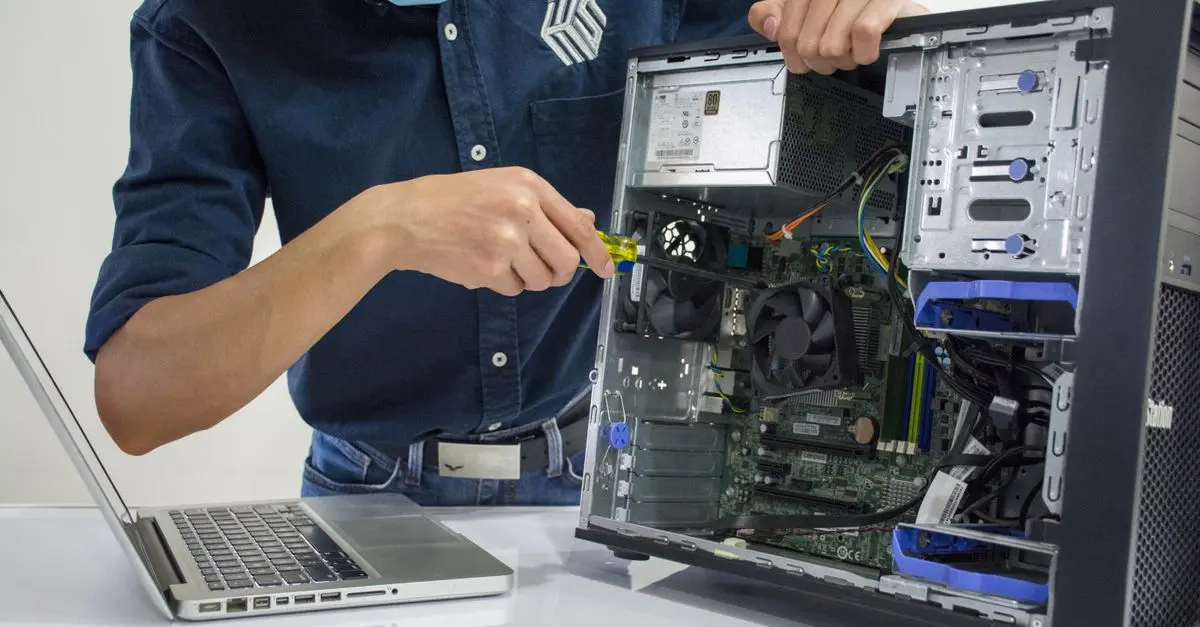
- DIY: Many upgrades are beginner-friendly, particularly RAM and SSD swaps. Numerous online tutorials can help guide you. DIY will save money, but ensure you’re comfortable working inside your computer case.
- Professional Help: If you’re uncertain about performing hardware upgrades or diagnostics, consider taking your computer to a specialist. They can provide valuable insights and services, often testing for issues you may not notice.
7. Budgeting for Upgrades
As you consider upgrades, budgeting is essential. Break down costs by components and prioritize which upgrades have the most impact on your usage. Here are tips for managing costs:
- Research: Look for sales, refurbished items, or bundles to save on components.
- Quality Brands: Investing in reputable brands often guarantees better performance and durability.
- Warranty Considerations: Always check if components come with a warranty; this can save you money down the road in case of failure.
Checklist before Upgrading
- [ ] Evaluate current hardware specifications
- [ ] Decide which components to upgrade first
- [ ] Research budget-friendly options and compare prices
- [ ] Consider performing upgrades yourself or hiring a professional
- [ ] Cleanup your system regularly to maintain performance
📺 Resource Video
> 📺 For further insights: Watch our comprehensive guide on upgrading your computer. Search on YouTube: "budget computer upgrades 2026".
Glossaire
| Terme | Définition |
|---|---|
| RAM (Random Access Memory) | Temporary storage that provides space for your computer to read and write data to be accessed quickly. |
| SSD (Solid State Drive) | A type of data storage device that uses integrated circuit assemblies to store data persistently, typically faster than traditional hard drives. |
| GPU (Graphics Processing Unit) | A specialized processor that accelerates the creation of images and videos in a PC, especially for gaming and graphics applications. |
🧠 Quiz rapide : What is one of the easiest upgrades to improve performance on a budget?
- A) Change the GPU
- B) Upgrade the RAM
- C) Buy a new monitor
Réponse : B — Upgrading the RAM is often simple and has a significant impact on performance.